What is 3CX
3CX is a software-based private branch exchange (PBX) system that offers a comprehensive communication solution for businesses. It enables seamless voice, video, and chat communications through VoIP (Voice over Internet Protocol), providing a flexible and cost-effective alternative to traditional phone systems. Designed to be user-friendly, 3CX can be deployed on-premises or in the cloud, supporting a range of devices and platforms, including desktop computers, smartphones, and web browsers. Key features include call routing, conferencing, voicemail, instant messaging, and CRM integration, making it a robust choice for enhancing business communication and collaboration.
Getting started with 3CX Deployment
Log in to portal.antyxsoft.io and during the instance creation at the Select Template section click on the Market Place App tab.
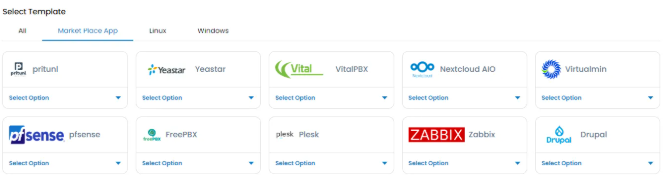
Select the ready-to-go 3CX Template from the list of available templates and deploy it.
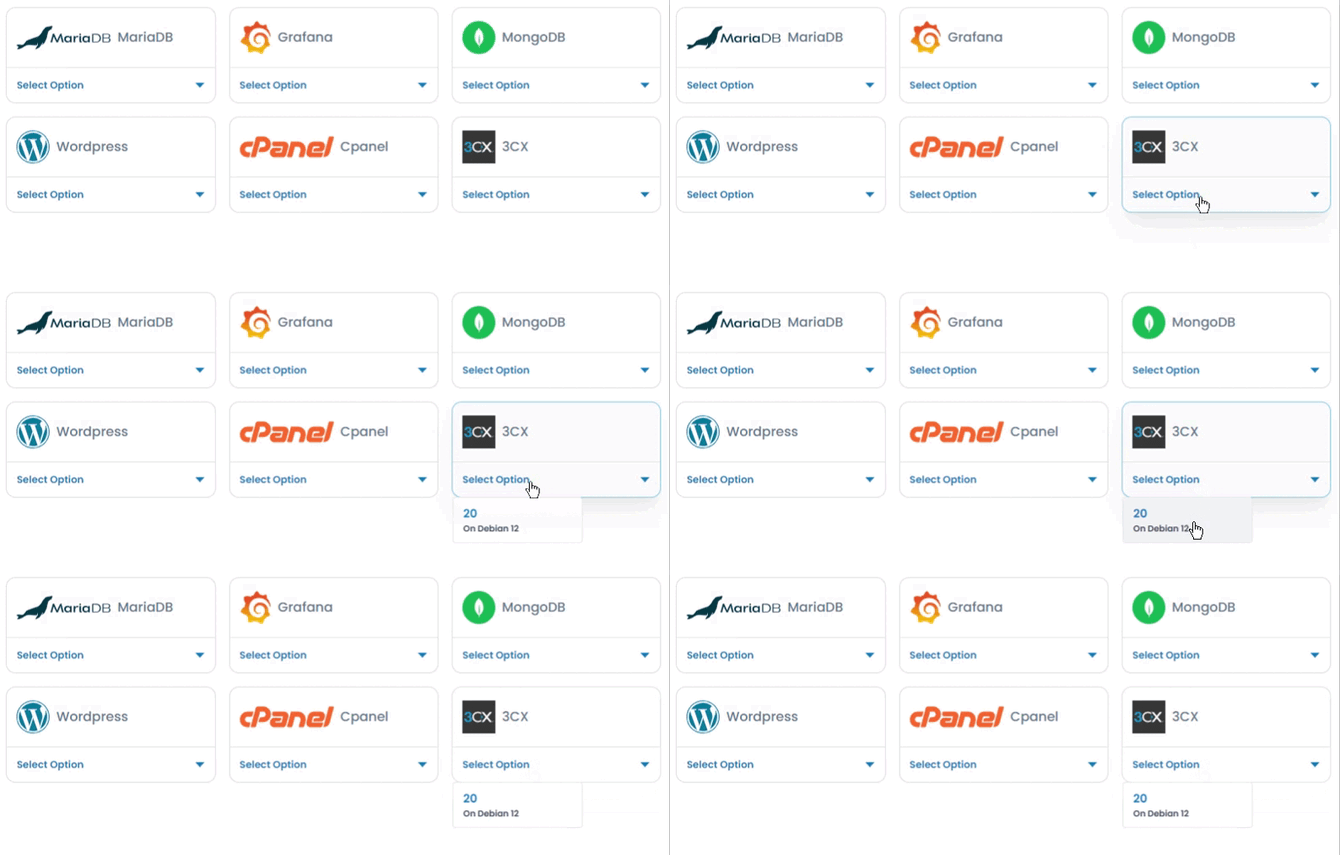
Accessing the 3CX Admin Dashboard
Obtain the Configuration File:
- Once the instance is deployed, login to your 3CX account.
- Choose the 3CX Self Hosted / Οn Premise (PRO / ENT) Option.
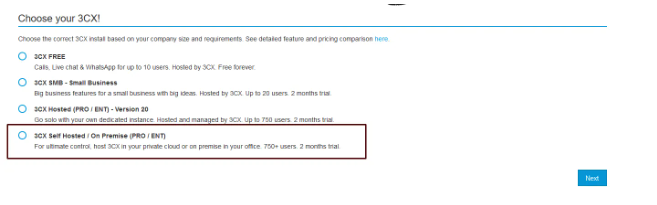
At the end of the process, you will receive a link to the configuration file. You can either copy the link or download the file. For more information, visit Installing 3CX.
Upload the Configuration File:
- Access your 3CX instance:
- Option 1: Use a web browser to go to http://<IP of machine>:5015. (The Private IP of the machine will show up you have to use the Public IP of your machine with the given port)
- Option 2: Alternatively, use the command line interface if provided by your cloud service.
Complete the Installation:
- Follow the prompts to upload the configuration file.

- Once the installation is complete, you will be prompted to set your password.
Login to 3CX:
- Use the email address you registered with to login to the 3CX PBX system.