This guide explains how to connect your Microsoft 365 organization in Veeam Portal to enable backup of Microsoft 365 services.
- Log in to the Veeam Portal.
- Use the Company Owner Account to access the organization settings.
- In the top-right corner of the portal, click Configuration.
- Navigate to Plugin Library.
- Select Veeam Backup for Microsoft 365. (In the configuration menu on the left, click Catalog. Then, click the Veeam Backup for Microsoft 365 plugin tile.)
- In the left-hand menu, click New to add a new organization.
- The setup wizard will open to guide you through the configuration steps.
Select which Microsoft 365 services you want to protect:
- Exchange Online
- SharePoint Online and OneDrive for Business
- Microsoft Teams (optionally includsing Teams chats)

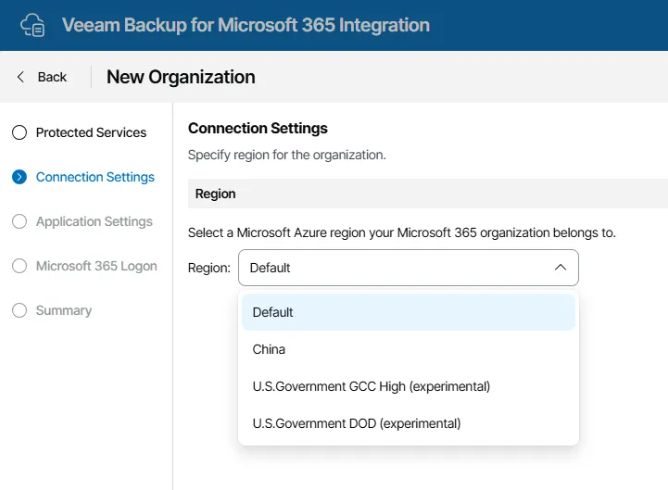
5. Connection Settings
Specify the region your Microsoft 365 organization belongs to.
- Choose Default, unless your organization is hosted in a specific Azure region such as:
- China
- U.S. Government GCC High (experimental)
- U.S. Government DOD (experimental)
6. Application Settings
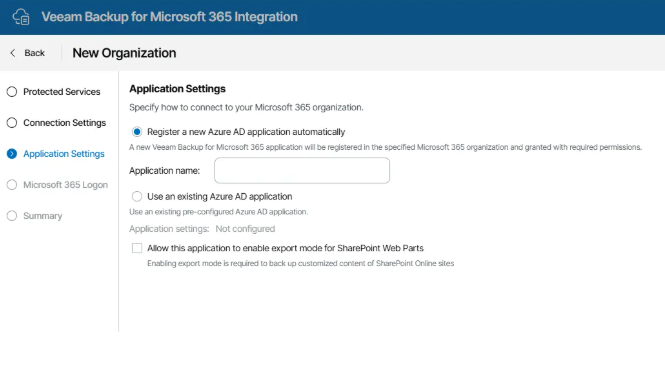
Specify how to connect to your Microsoft 365 organization:
- Register a new Azure AD application automatically Enter a name for the application. The Veeam Backup for Microsoft 365 application will be registered in your Azure AD tenant and granted the required permissions.
Alternatively, you can:
- Use an existing Azure AD application if one has already been preconfigured.
Optional:
- Enable the checkbox Allow this application to enable export mode for SharePoint Web Parts if you need to back up customized SharePoint content.
7. Microsoft 365 Logon
Authenticate your Microsoft 365 administrative account:
- Click Verify your Microsoft 365 account.
- Enter the verification code provided by VSPC.
- Sign in using your Microsoft 365 administrator credentials.
- Proceed with the login and wait until the verification status changes to Verified.
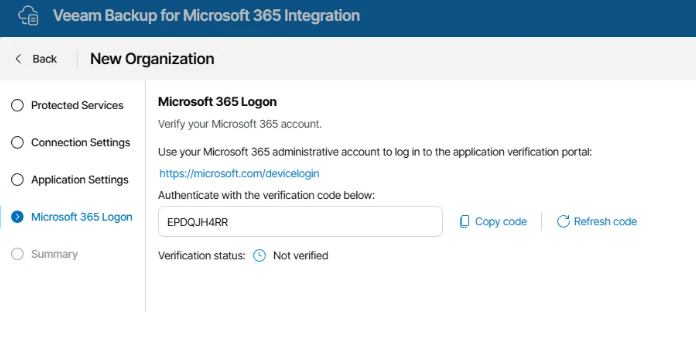
Once the authentication is complete, your Microsoft 365 organization will be successfully connected and ready for backup within Veeam Portal.