Step 1: Create a Kubernetes Cluster
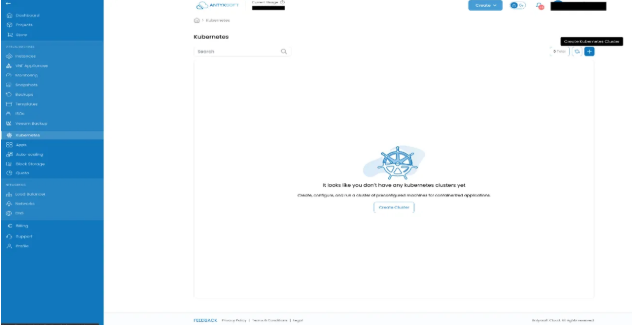
- Navigate to the Kubernetes tab on the left side of the menu.
- Click on the Create Kubernetes Cluster option.
Step 2: Configure Cluster Settings
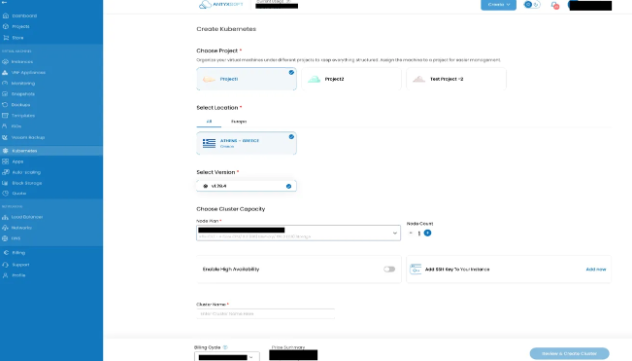
- Select the Project, Location, Kubernetes version, and Node Plan from the available options.
- Increase the Node Count to set the number of worker nodes.
- It's important to add your SSH key to the cluster; without an SSH key, you won't be able to access the cluster.
- To add your SSH key, click on Add SSH Key.
Step 3: Add Your SSH Key
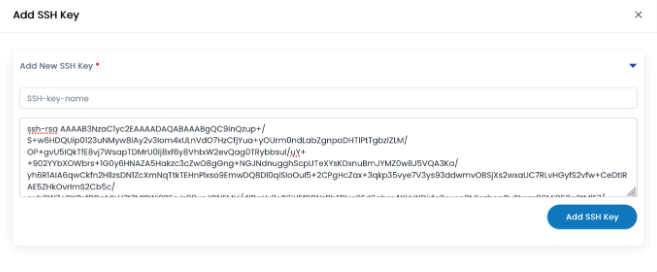
- Add your public key with a name for the SSH key in the dialog box.
- Click on the Add SSH Key button.
Step 4: Review and Create Cluster
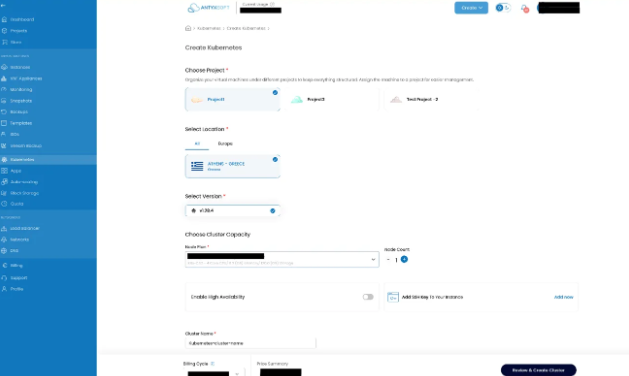
- Once the SSH key is added, provide a name for your cluster.
- Click on Review & Create Cluster.
Step 5: Finalize Cluster Creation
- A new dialog box will open with details of your Kubernetes cluster, including billing information.
- If all details are correct, click on the Create Cluster button.

Step 6: Cluster Creation Complete
- Your Kubernetes cluster will be created with the required controller node and worker nodes.
- You can view the cluster details under the Kubernetes menu.
How to Access the Kubernetes Cluster
SSH into Control and Worker Nodes
- Control Node:
ssh -i <ssh-private.key> -p 2222 cloud@<Public IP address of Virtual Router>
- Worker node
ssh -i <ssh-private.key > -p 2223 cloud@<Public ip address of Virtual Router>
Note: In case there are worker nodes more than one, then every worker node is mapped from port 2223 to the total number of worker modes. For example if I have 3 worker nodes, then ports 2223, 2224 & 2225 are mapped to each worker node. You can access all the worker node using the Public IP of Kubernetes cluster with their corresponding ports as shown in the commands above.