1. Log in
- Log in to the Veeam Portal.
- In the left menu, click Backup Jobs.
- Open the Microsoft 365 Objects tab.
- At the top, click Create Job → Backup Job. The New Backup Job wizard will open.
2. Job Name
Enter a Job Name and an optional Description.
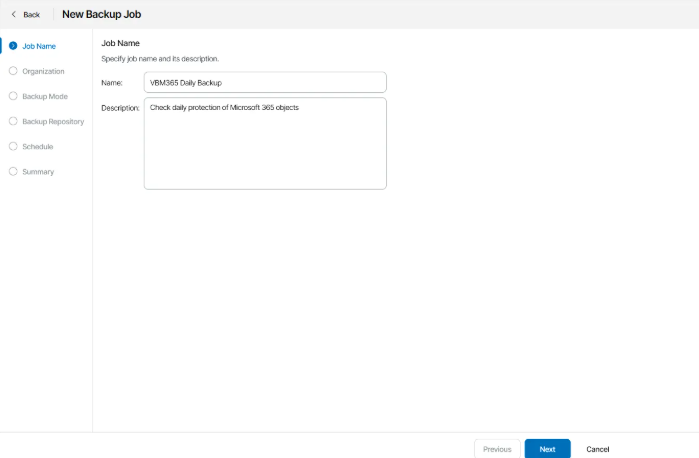
3. Select Organization
- Click Select.
- In the Available Organizations window, choose the organization you want to back up.
- Click Apply.
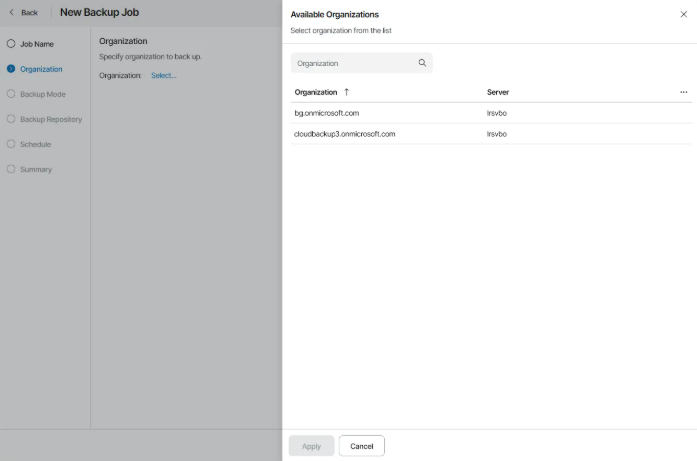
4. Backup Scope
- Backs up everything in the organization.
- Does not include Teams chats.
- Choose only the objects you want to protect.
- Click Configure and pick the object type:
- User
- Group
- Site
- Teams
- Personal Sites
- Current organization
- Click Browse → Add to include it
5. Exclusions (Optional)
If you want to exclude objects from the backup:
- Turn Exclusions → On.
- Click Configure and choose object type.
- Click Browse → Add to exclude items.
- (Optional) Modify Processing Options.
- Click Apply.
- Turn on Run the job automatically if you want the job to run on its own.
- If disabled, backups must be started manually.
- Runs the job once per day at the chosen time and selected weekdays.
- Runs the job multiple times per day at a set interval (e.g., every 2 hours).
- Click Set schedule to choose allowed time windows.
How periodic scheduling works:
- Intervals start from 12:00 AM each day.
- If only certain hours are allowed, the first run begins when the allowed window starts, then follows the interval.
- Set how many retry attempts the job should make and the delay between attempts.
- Enable Terminate job if it exceeds allowed backup window to avoid long-running jobs.
- Click Configure backup window to set allowed and prohibited hours.
- If the job runs past the window, it will automatically stop.
This completes the setup of your Microsoft 365 backup job.