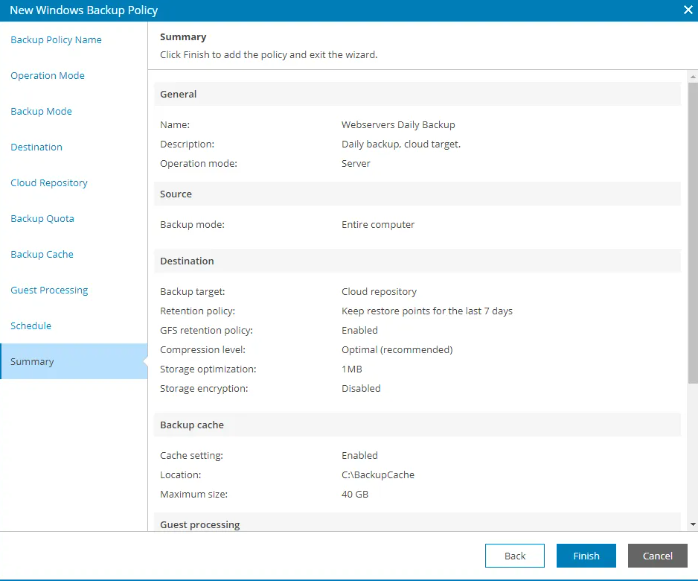
To set up a new backup policy using the Veeam Console, follow the steps outlined below.
- Log in to our Veeam Console.
- In the top-right corner, click on Configuration.
- From the left-hand menu, go to Backup Policies.
- At the top of the list, click New and choose Windows.
- Alternatively, right-click anywhere on the backup policies list, then select New > Windows.
This action will open the Backup Policy Wizard, starting with settings specific to Windows-based systems.
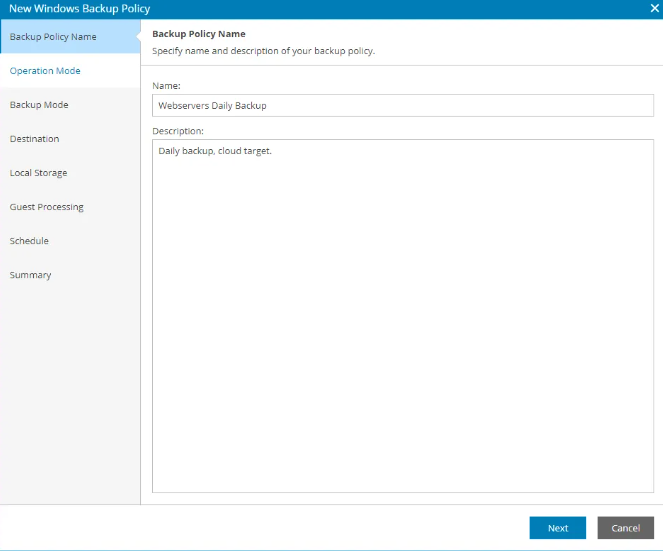
Step 2: Name and Describe the Policy
Enter a name and an optional description that clearly defines the purpose of the policy.
Choose how the Veeam agent will operate depending on the type of machine:
- Server: Ideal for machines running a server operating system. This mode supports features like application-aware processing, file indexing, and flexible scheduling. Suitable for backing up servers hosting applications.
- Workstation: Designed for endpoints running a workstation OS. Offers simplified scheduling and is optimized for user computers.

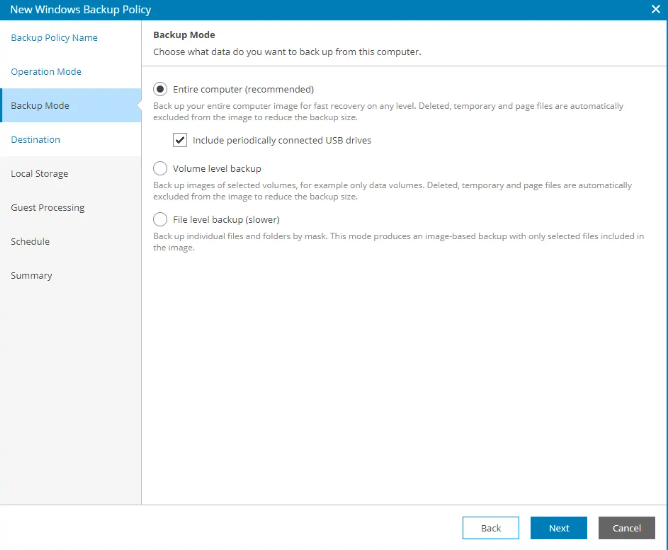
- Entire Computer Creates a full system image backup, allowing full restores or partial data recovery.
- Volume-level Backup Backs up selected volumes.
- File-level Backup Targets specific folders or directories.
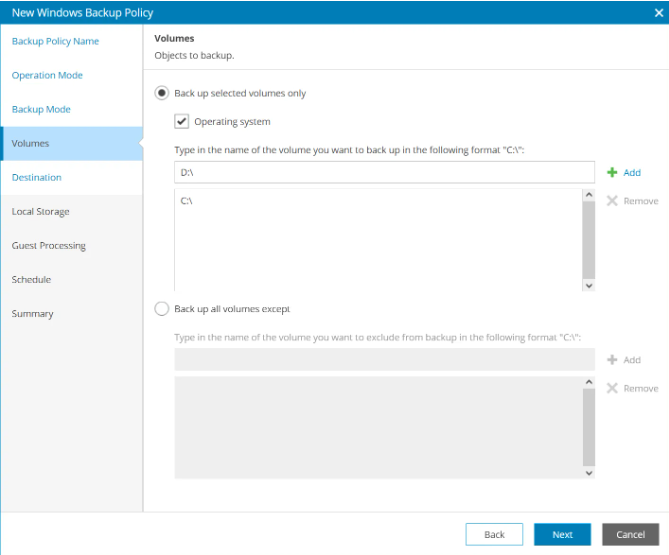
Select Volumes (If Applicable)
If volume-level backup is selected:
- Use the Operating System checkbox.
- Enter drive letters manually.
- You can also exclude specific volumes.
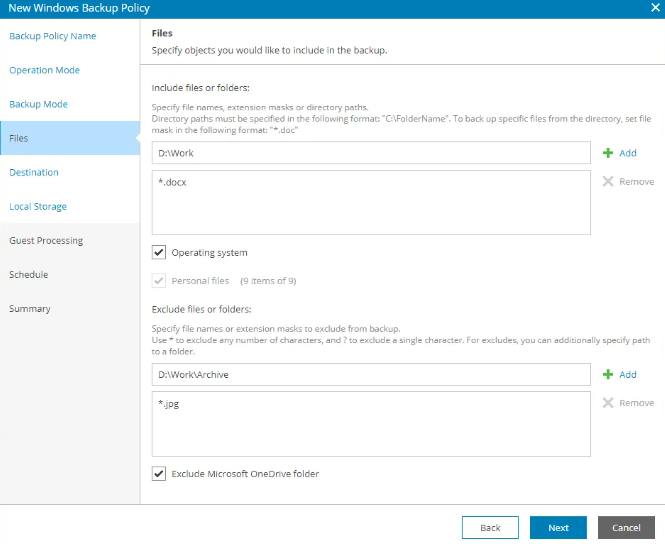
Select Files and Folders (If Applicable)
In file-level backup mode, you can:
- Include specific folders.
- Combine folders and volumes (hybrid).
Options:
- Add file paths or patterns.
- Include OS or personal user data.
- Exclude files, folders, or OneDrive.
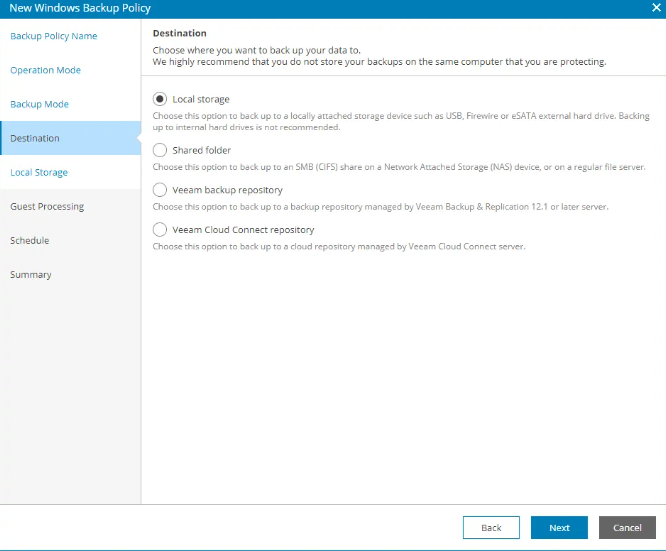
Step 4: Set Backup Destination
Choose Veeam Cloud Connect repository as the destination.
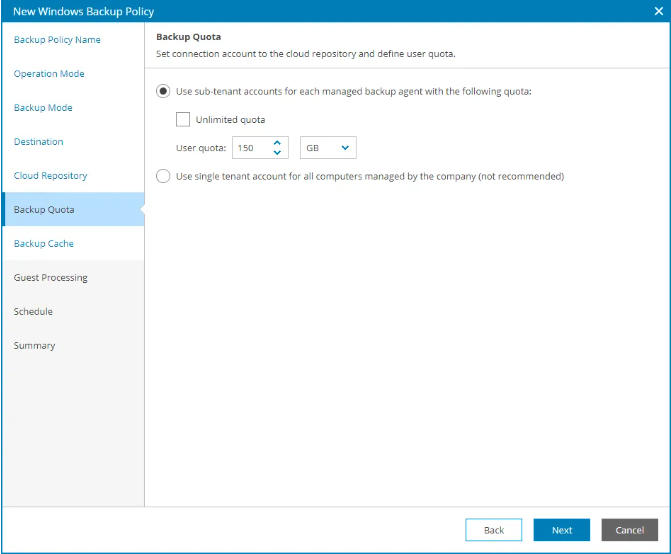
- You can use either option, but in both cases you must keep the passwords that will be sent to you, as it is your responsibility to store them safely. These passwords are essential for performing any restores, and without them it will not be possible to recover your data.
More options: Advanced Job Settings
Schedule the backup according to system type:
Review your configuration and click Finish to save and apply.