Overview
FortiGate Next-Generation Firewall (NGFW), provides advanced network security by combining firewalling, intrusion prevention, application control, and threat intelligence in a single platform. It is designed to secure enterprise, cloud, and branch environments with high performance and centralized management.
The FortiGate template is provided as a deployment image only.
Users must supply and activate their own valid FortiGate license
Step 1: Log in to the Portal
Log in to portal.antyxsoft.io and start the instance creation process.
Step 2: Select the Template
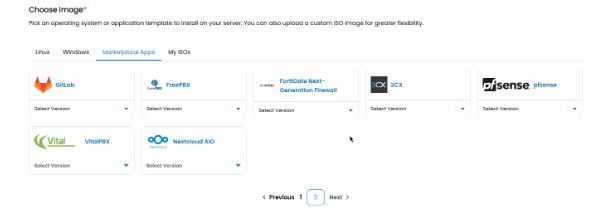
During the instance creation, navigate to the Select Template section and click on the Market Place App tab.
Step 3: Choose the FortiGate Template
From the list of available templates, select the FortiGate Next-Generation Firewall ready-to-deploy template.
Step 4: Deploy the Instance
Proceed with the deployment by configuring the required resources (CPU, memory, networking) and launch the instance.
Step 5: Initial Access
Once the deployment is complete, access the FortiGate management interface via the assigned IP address to perform initial configuration, such as:
- Setting administrator credentials
- Configuring interfaces and routing
- Applying basic security policies
Your FortiGate NGFW instance is now ready to provide enterprise-grade network security, with full access to FortiOS features for firewalling, threat protection, and secure connectivity.