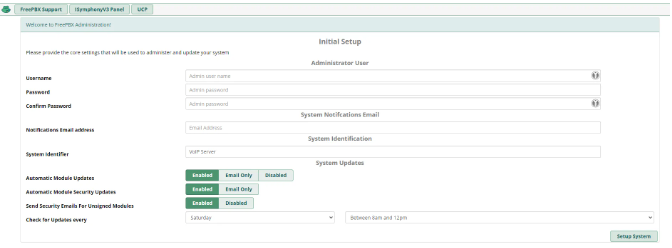
What is FreePBX
FreePBX is a free, open-source graphical user interface (GUI) that allows users to manage Asterisk, a powerful open-source telephony engine. FreePBX simplifies the management of an enterprise-level VoIP (Voice over IP) phone system, enabling businesses and individuals to set up, configure, and maintain a phone system without needing advanced technical expertise in telephony.
Key features of FreePBX include:
- Call Management: Provides features like call routing, call forwarding, and call queues to efficiently handle and direct incoming and outgoing calls.
- IVR (Interactive Voice Response): Allows businesses to create automated phone menus (e.g., "Press 1 for Sales") to direct calls to the correct department or extension.
- Voicemail: Includes voicemail management with options for voicemail-to-email delivery, allowing users to receive messages via email.
- Conference Calling: Enables easy setup of conference calls for group meetings.
- Call Recording: Offers call recording options for monitoring or archiving conversations.
- Extension Management: Manages user extensions, providing features like caller ID, call waiting, and do-not-disturb settings.
- Security Features: Implements various security measures to protect the phone system from unauthorized access, such as firewalls and encryption.
- Customizable Modules: FreePBX is modular, allowing users to add or remove functionalities like fax integration, CRM integration, and more.
- Remote Access: With VPN or cloud configurations, FreePBX allows for remote management and usage, making it ideal for businesses with distributed teams.
FreePBX is commonly used by small and medium-sized businesses, call centers, and organizations that want to set up a cost-effective, flexible, and feature-rich phone system without being locked into proprietary solutions.
Getting started with FreePBX Deployment
Log in to portal.antyxsoft.io and during the instance creation at the Select Template section click on the Market Place App tab.
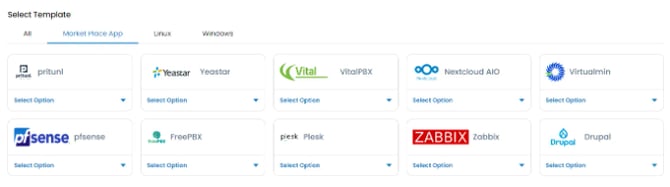
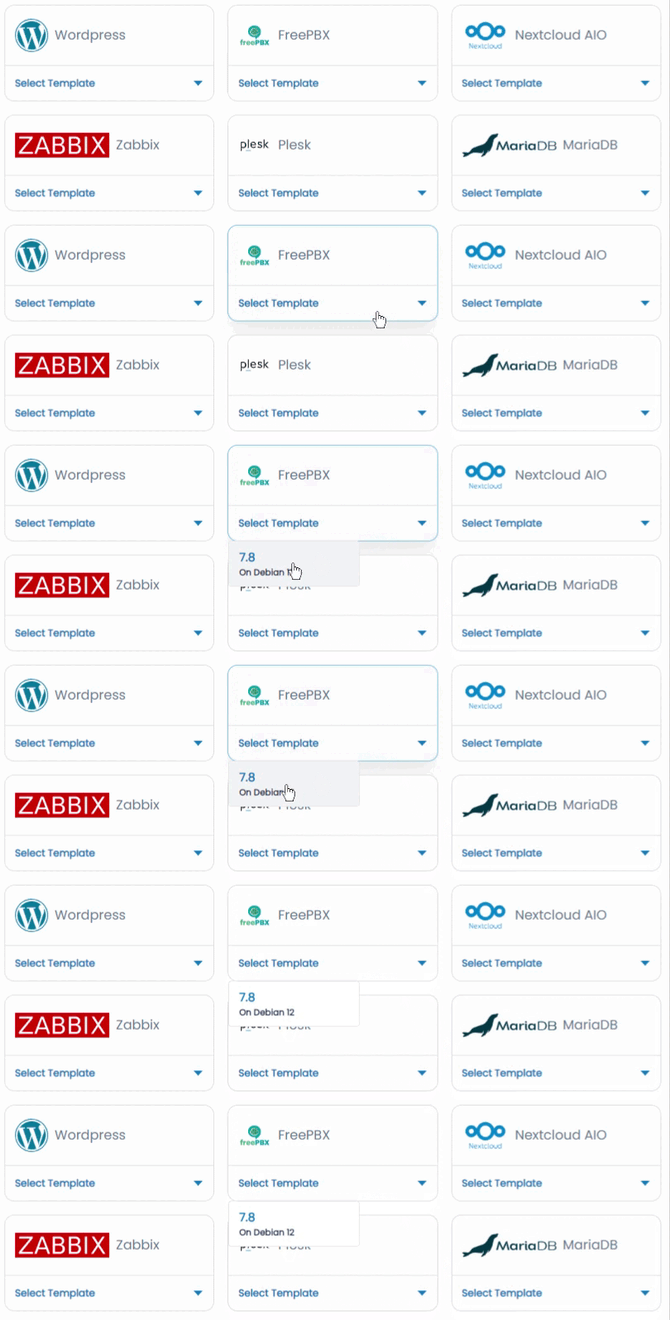
Select the ready-to-go FreePBX template from the list of available templates and deploy it.
Accessing the FreePBX Dashboard
To access the FreePBX dashboard, first you will need to copy the Public IP of the VM, located in the Overview section at the Instance menu.
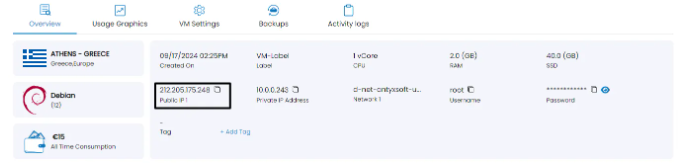
Paste it at your browsers search section followed by the port 80. e.g http://[public-ip-address]:80