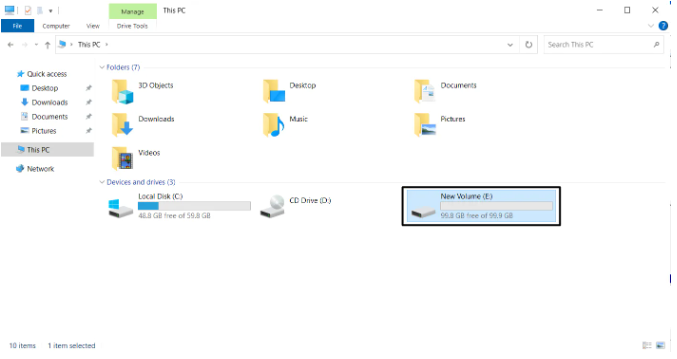
To partition and mount your Block Storage in a Windows system follow this guide.
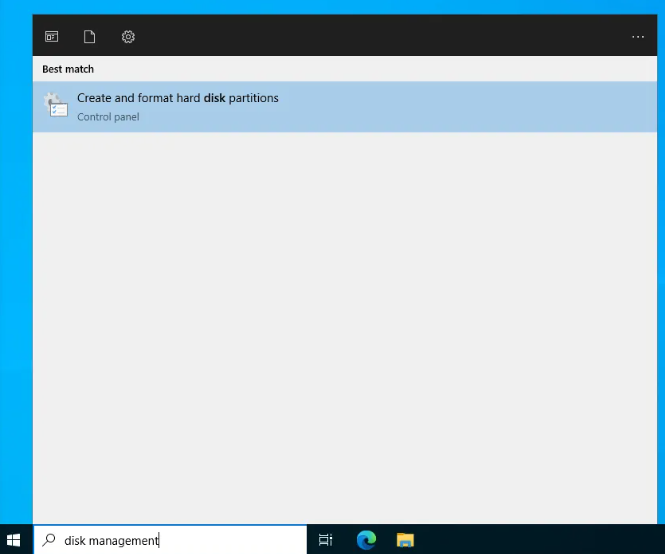
- Search for Disk Management from the windows search.
- Once you launch the Disk Management utility you will be presented with this menu:
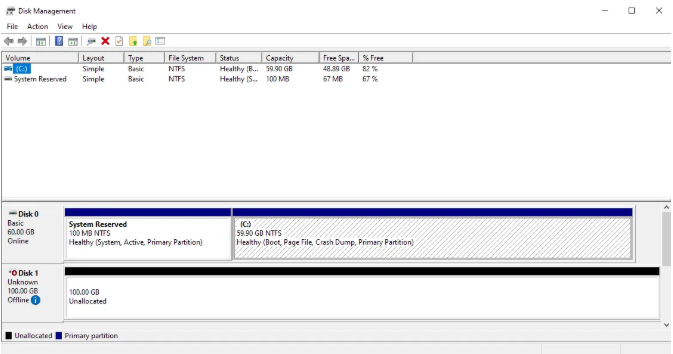
- At the bottom you will see the available disks that are attached in your instance.
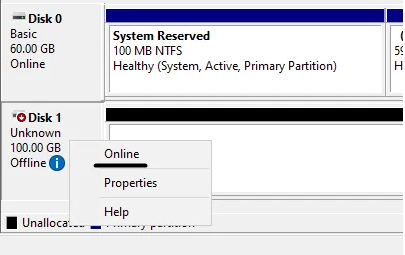
- Right click on the new disk and click on Online.
- Then right click again and select Initialize Disk. It will bring up this menu:

- For partition style select GPT (GUID Partition Table) and click OK.
- Next right click on the Unallocated Volume and click on New Simple Volume.
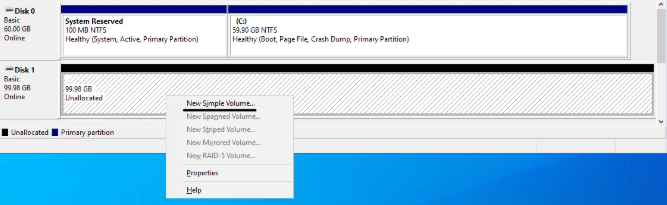
- This will bring up the wizard to setup a the new volume.
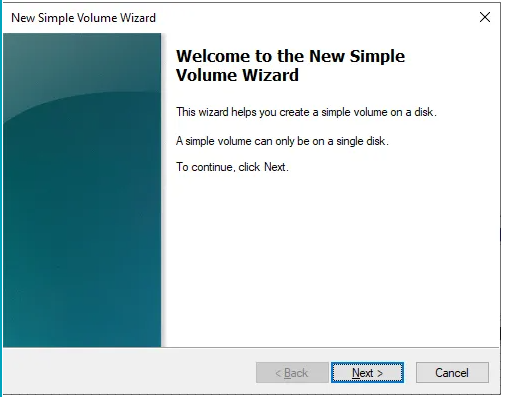
- After you click on Next you will have to specify the new volume size. Set the size and click on Next.
- Then you'll be asked to assign the drive leter or path.
- Next you will be asked to set the filesystem of the new volume and it's label.
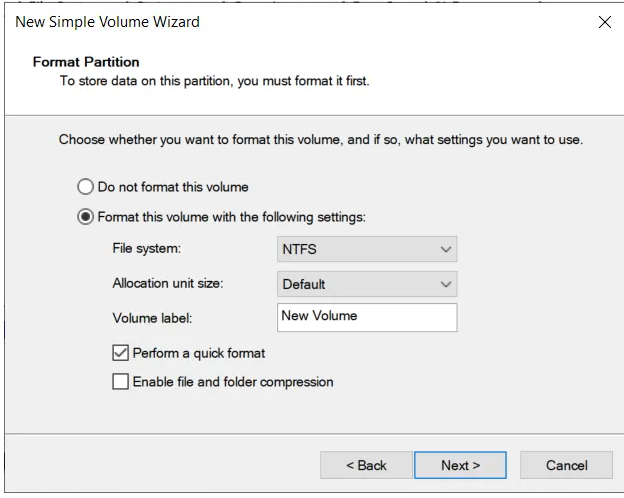
- Proceeding to the next step shows an overview of the drive changes. Confirm that everything is right and then click on Finish.
- Now you have mounted your Block Storage to your instance.