What is Pritunl
Pritunl is an open-source VPN server software designed to provide secure remote access and network connectivity. It is known for its scalability, ease of use, and support for various VPN protocols and configurations.
Key features of Pritunl include:
- Open-Source: Being open-source, Pritunl allows for customization and transparency, with the source code available for review and modification.
- Multi-Protocol Support: Supports multiple VPN protocols including OpenVPN and WireGuard, offering flexibility in terms of security and performance.
- Scalability: Designed to scale from small deployments to large, distributed environments, making it suitable for both individual use and enterprise-level solutions.
- User Management: Provides a web-based management interface for creating and managing user accounts, VPN connections, and server configurations.
- High Availability: Includes features for setting up high-availability configurations to ensure continuous service and reliability.
- Integration: Can integrate with various authentication systems, including LDAP, Active Directory, and SAML, to support enterprise environments.
- Security: Implements strong encryption and security measures to protect data in transit and ensure secure remote access.
- Cross-Platform: Compatible with a wide range of operating systems and devices, including Windows, macOS, Linux, iOS, and Android.
Pritunl is used by organizations and individuals looking for a flexible, secure, and scalable VPN solution that can be customized to meet specific networking and security needs.
Deploying a Market Place App
Log in to portal.antyxsoft.io and during the instance creation at the Select Template section click on the Market Place App tab.
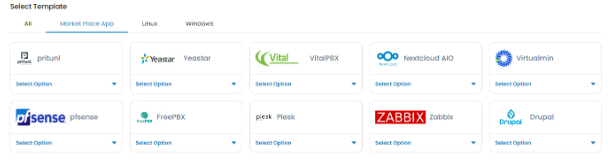
Select the ready-to-go Pritunl template and select the version you want to deploy.
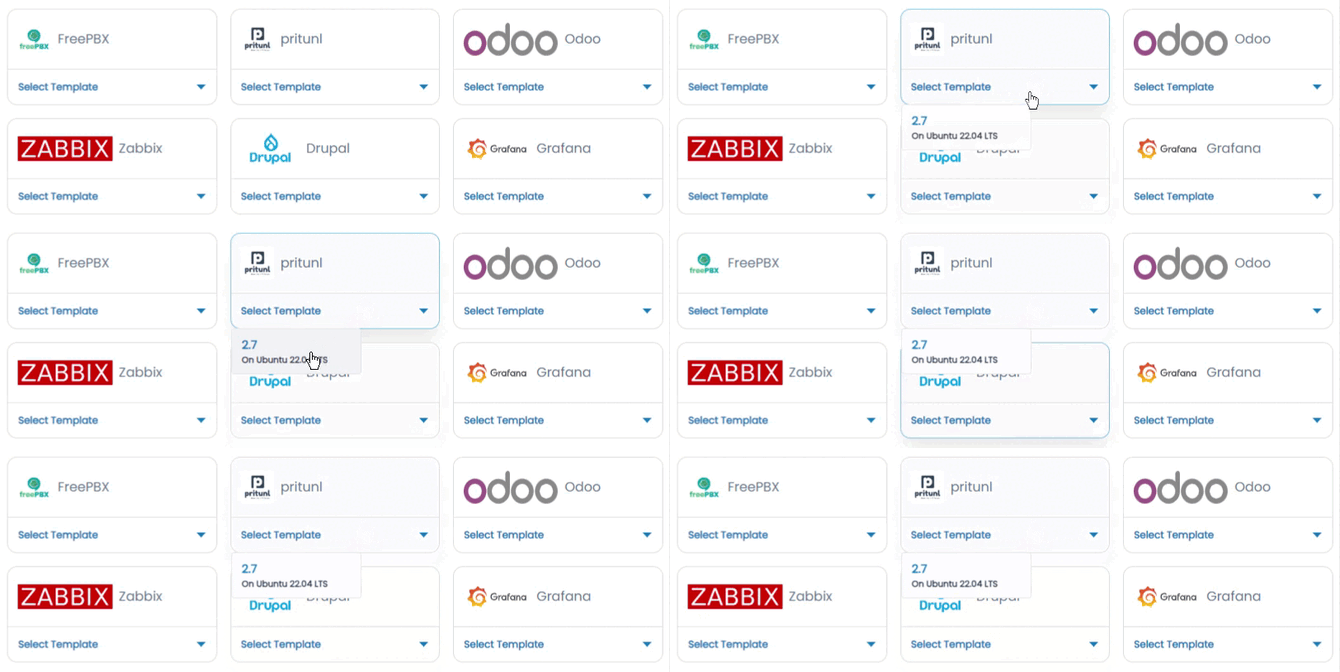
Once you select your plan and named the VM. Click on the Review & Deploy button to deploy your new app.
Accessing the Pritunl Dashboard
To access the Pritnl dashboard, first you will need to copy the Public IP of the VM, located in the Overview section at the Instance menu.
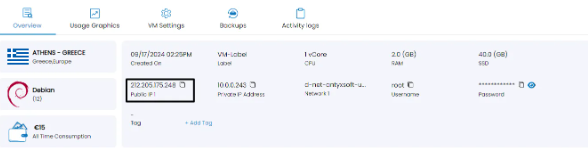
Paste it at your browsers search section followed by port 443. e.g https://[public-ip-address]:443
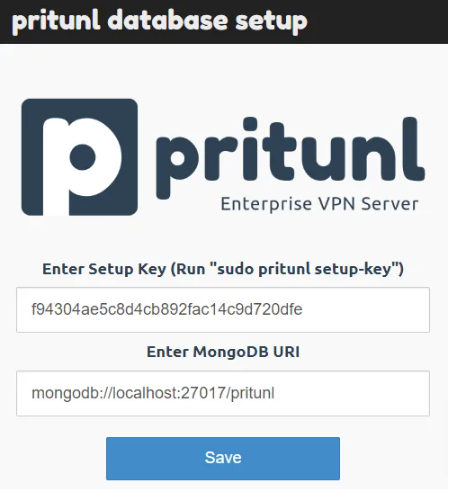
Setup Key
The Setup Key is unique for each install. To get the Setup Key for your install you have to connect to the VM via SSH. Login by using the credentials provided in the portal.

Run the pritunl setup-key command and the output should look like this:

Copy the key and paste it into the WebUI.
Default password
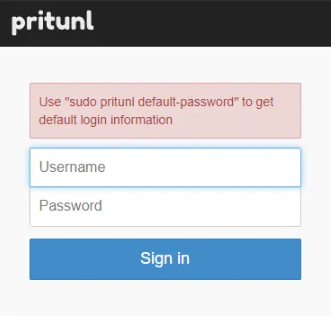
After that you will be welcomed with a login screen. For the credentials you will have to go back to the terminal and execute pritunl default-password.

Finally you will be presented with the initial setup.
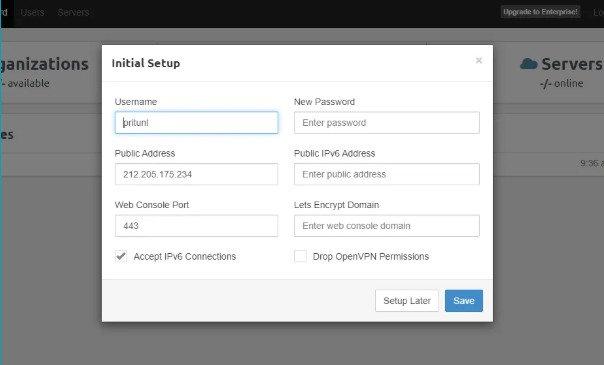
Now that you’ve accessed your dashboard, check out the official Pritunl documentation to learn how to add users and further use your Pritunl instance.