In order to restore or migrate a Virtual Machine to Antyxsoft Cloud, you need to proceed with the following steps:
1. Create the Virtual Machine
Create the VM you want and make sure it matches the specifications of the original machine you want to restore. You can follow this guide to create your Virtual Machine.
2. Upload the Appropriate ISOs
Upload the appropriate ISOs to the correct region where your VM will be created. For each VM you restore, you will need two ISOs:
- The Veeam Recovery Image
- The Drivers ISO
You can find all the ISOs here.
Note: You should copy the link of the ISO and not download it locally.
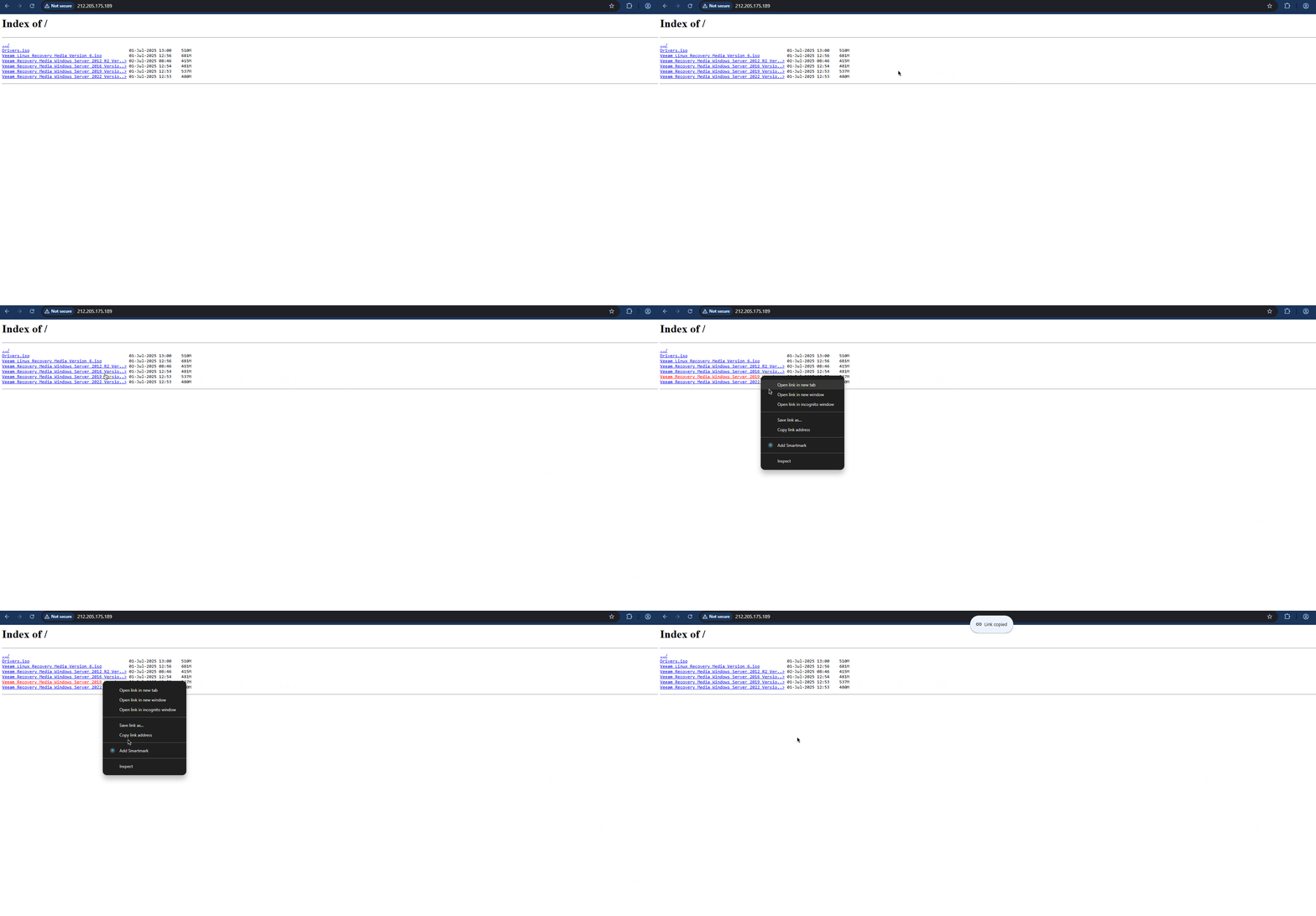
To Create your ISO File, follow these steps:
- Go to the ISO option on the left-hand side.
- Once you're on the correct page, click the Create ISO button.

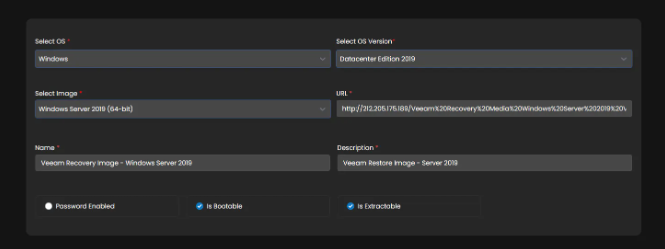
To upload the ISO, you need to declare the appropriate settings. Below are the settings used in the current example:
- Select OS: Windows
- Select OS Version: Datacenter Edition 2019
- Select Image: Windows Server 2019 (64-bit)
- URL: Paste the ISO link you copied from here
- Name and Description: Make it obvious and descriptive
Select the following two options:
- Is Bootable
- Is Extractable
For the Drivers ISO:
Use the same process as above, but with the following settings:
- Select OS: Debian
- Select OS Version: 14
- Select Image: Other (64-bit)
- URL: Paste the ISO link you copied from here
- Name and Description: Use something clear

3. Insert the Veeam Recovery ISO
Once your Virtual Machine is ready, insert the appropriate Veeam Recovery ISO.

After the ISO is attached:
- Power off the VM.
- Power it on again.
- Immediately take Console Access and send Ctrl+Alt+Delete, then press any key when prompted.
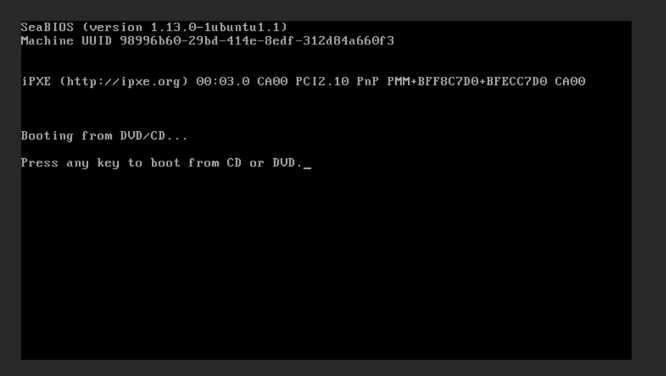
This way, the ISO will boot first.
Note: If the system doesn’t boot from the ISO, let the operating system load normally. Then restart the VM from within the OS. On reboot, you should get the BIOS screen — press any key to boot from the ISO

4. Start Bare Metal Recovery
Once your ISO has booted, go to the Bare Metal Recovery option:
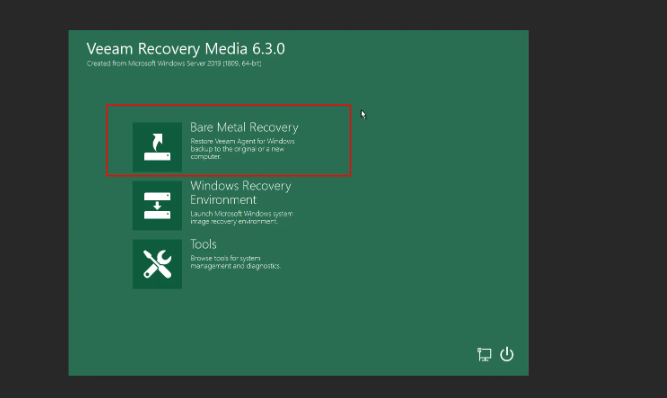
5. Switch ISOs and Load Drivers
- Go back to the portal, detach the Veeam ISO, and attach the Drivers ISO.
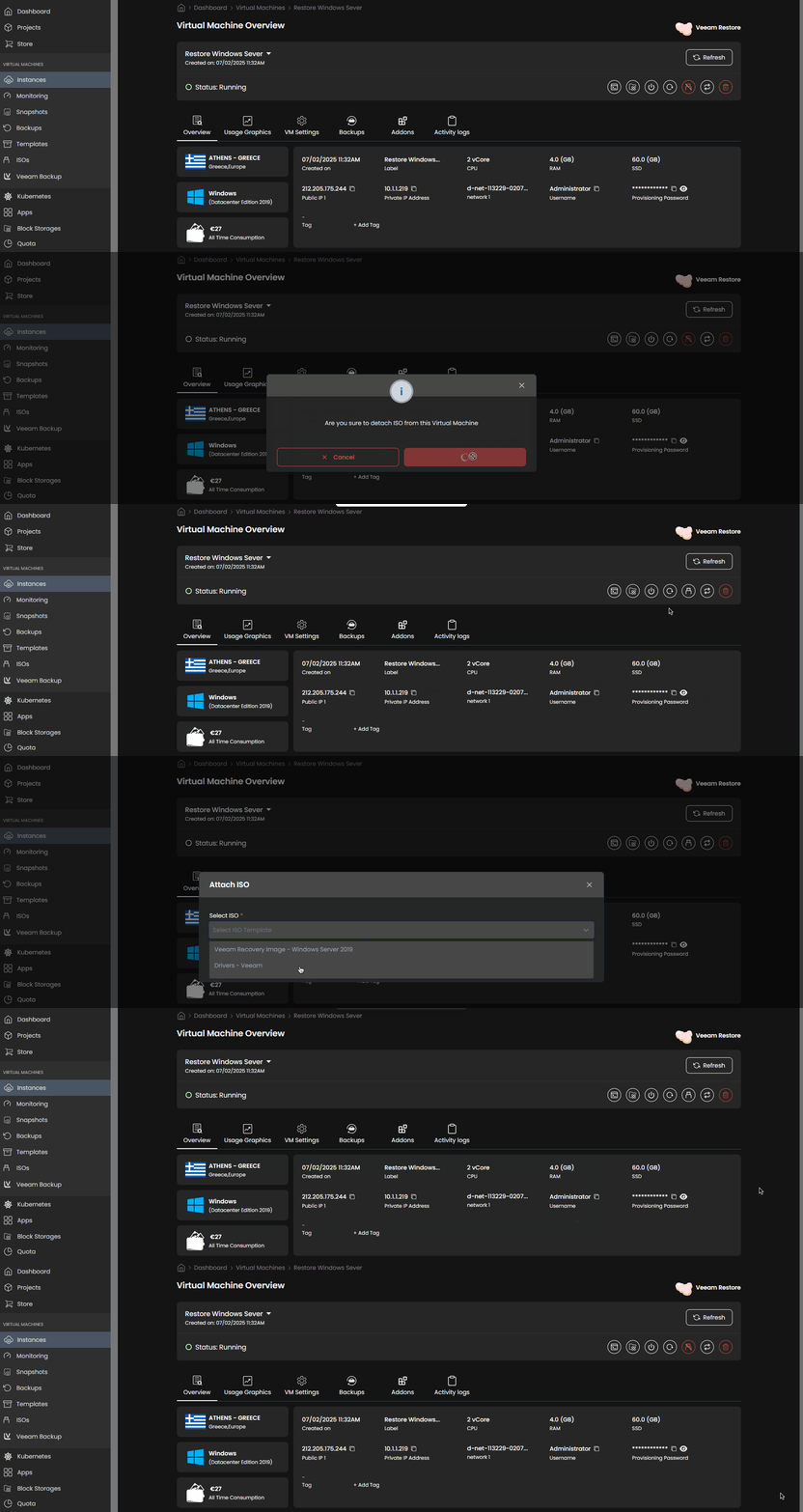
- Proceed with the Load Driver option:
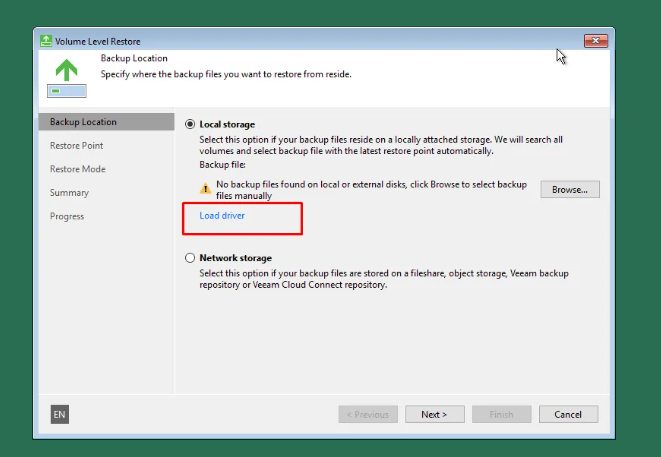
- After clicking Load Driver, a window named Hardware Drivers will pop up. On the ethernet driver, click Install Driver.
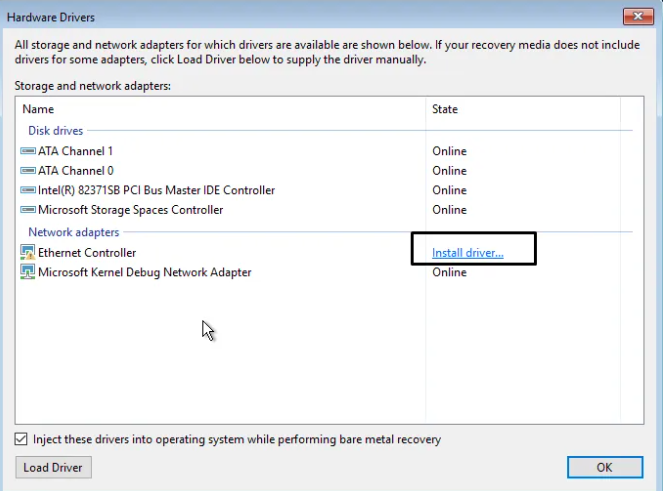
- After installing the NIC Driver, look at the bottom-left corner for the Load Driver option again. Click on it.
- Continue with the Browse option:
- Navigate to This PC
- Go to the CD Drive that has the Drivers ISO
- Scroll down and find the viostor folder
- Select the appropriate folder based on the OS you're recovering (in this example: 2k19 for Windows Server 2019)
- Proceed to install the .inf file from the viostor folder

Note: Depending on the version of the operating system you're restoring, make sure to use the corresponding drivers.
6. Continue with Network Storage Option
After installing all the mandatory drivers, you can:
- Detach the Drivers ISO
- Re-attach the Veeam ISO
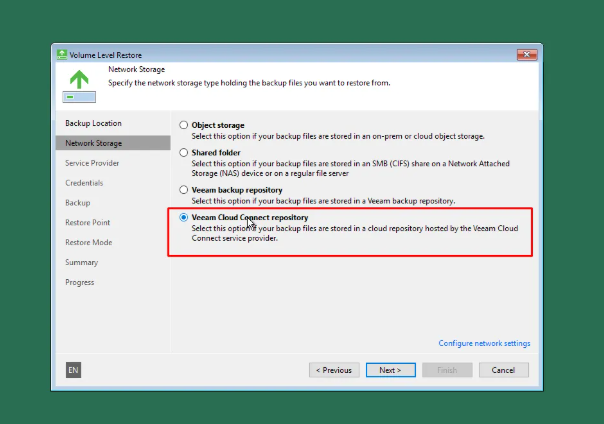
Then proceed with the Network Storage option:
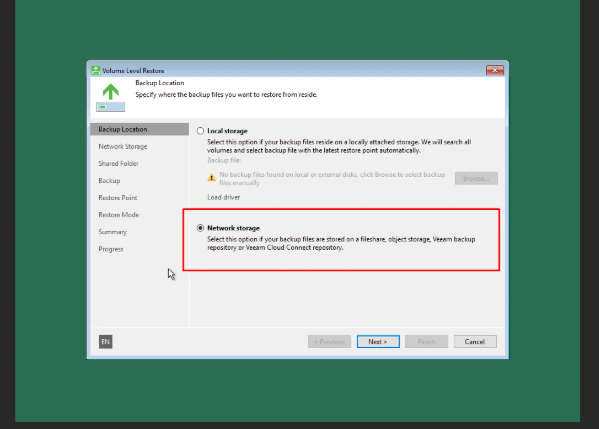
7. Connect to Veeam Cloud Connect Repository
- Select the Veeam Cloud Connect Repository:
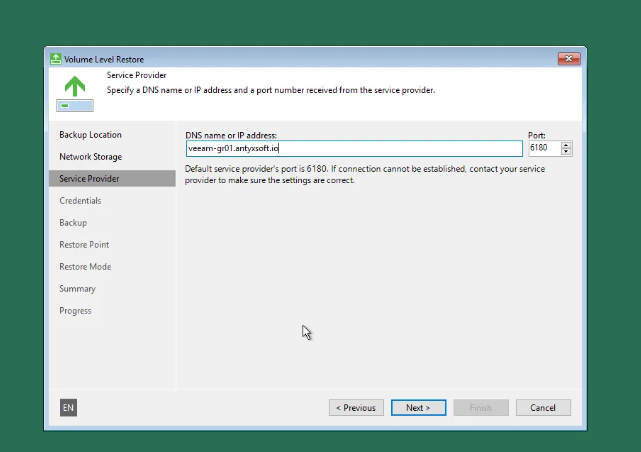
- veeam.antyxsoft.io
- veeam-gr01.antyxsoft.io
- veeam-usa01.antyxsoft.io
Default port: 6180
8. Connect to the User Repository
After the connection is established and the SSL certificate is accepted, proceed with connecting to the user repository.
The credentials used are the same as the ones for the Backup Agent. Your username should be in the format: Tenant\Tenant_ComputerName
If you don’t know them:
- You can find them from VSPC
- You can reset them via VSPC
- Or you can locate them in the emails sent after the Backup Policy was created

9. Select Backup & Restore Point
Once connected, you will see the available backups and restore points:
Proceed with the restore mode Entire Computer to restore the whole system.
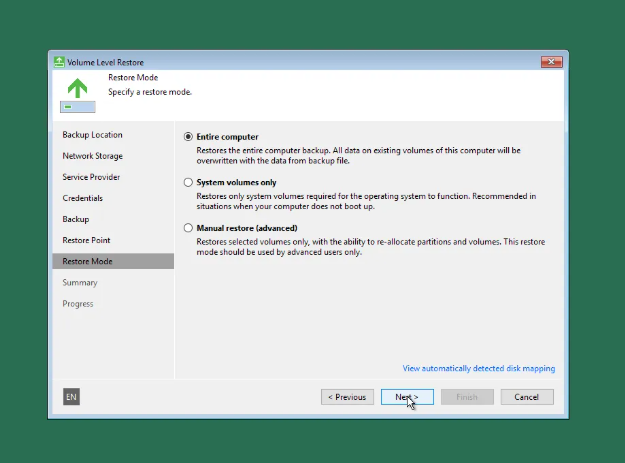
Choose what best suits your needs and continue with the restore process.
Need Help?
If you encounter any issues during the restore or migration process, or if you need further assistance, our support team is here to help.
You can open a support ticket following this guide.